08 · Projects & layers
Tool library
Every bit you own, with its cutting data, shared by all projects.
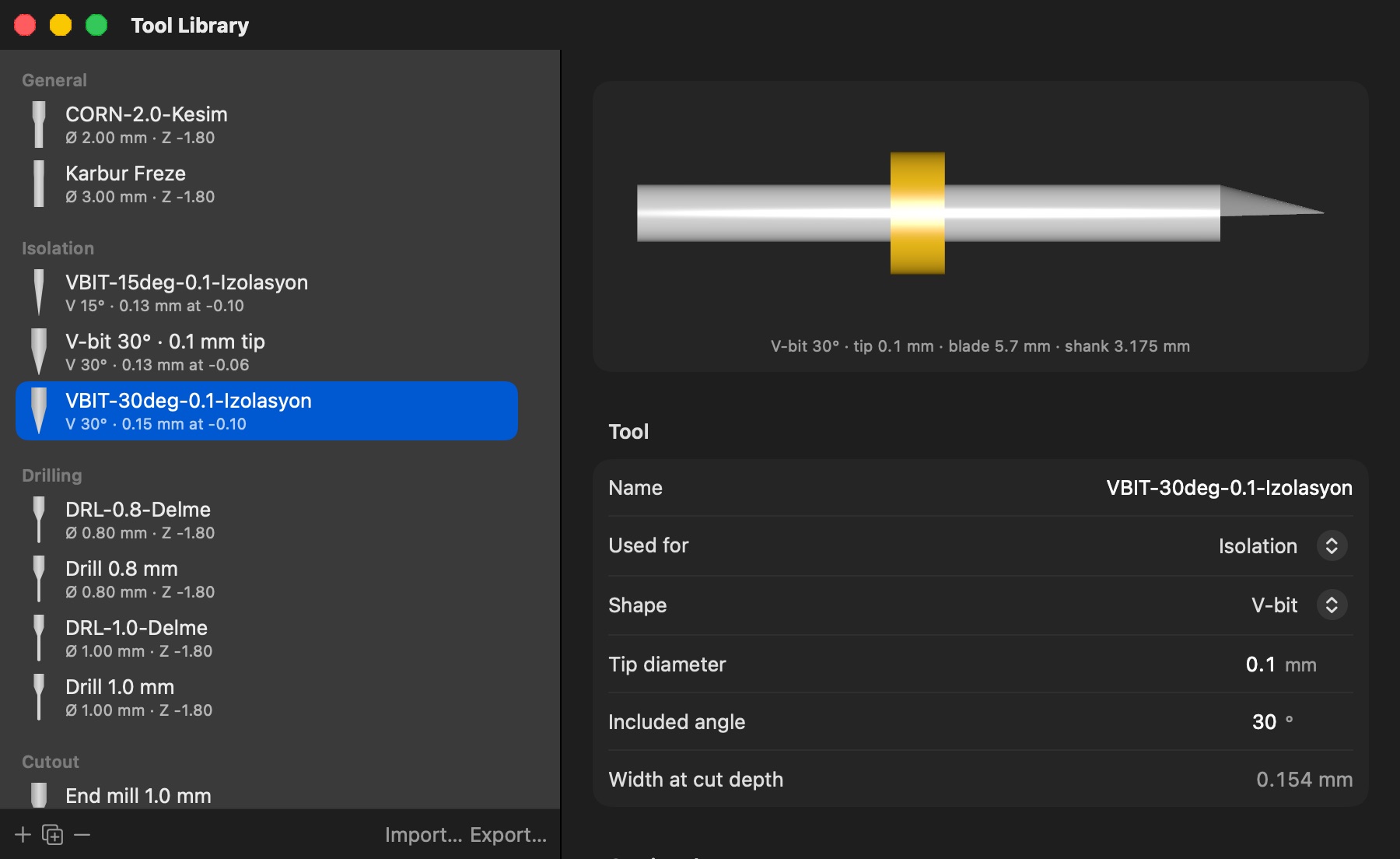
File → Tool Library… (⇧⌘L) holds every bit you own with the cutting data that goes with it: shape (straight / ball / V-bit), what it is used for, diameter or tip + angle, depth, depth per pass (drills: peck depth), feeds, spindle, pass overlap, and for drills the range of hole sizes it may drill.
- Import FlatCAM… reads a FlatCAM Tools Database export (Tools Database → Export, the JSON
.TXT). Tool Target maps to Used for (Isolation, Drilling, Milling/Cutout → Cutout, others → General); V shape keeps tip and angle; FlatCAM's drill tolerance becomes the hole range. Re-importing updates tools with the same name instead of duplicating them. - Makera bits by default — every library starts with Makera's Carvera bits (the set from Makera Studio: 121 bits, fifteen materials, Studio's groups), and a library made before this version receives them once at the next launch. Delete what you do not own, in bulk if you like; Restore Makera Bits (in the library's Import / Export menu) brings back any you removed, leaving the ones you kept as they are.
- Import from Makera Studio… (Import / Export menu) — when Makera Studio is installed on this Mac, this imports its whole library in one go: every Carvera bit with its shank, cutting diameter, tip, angle and flute length, one row of cutting data for each of Studio's fifteen materials (PCB, Copper, Brass, 6061 and 7075 Aluminum, Carbon Fiber, Delrin, Acrylic, Polycarbonate, ABS, Bakelite, Epoxy Tooling, Synthetic Stone, Hardwood, Softwood), filed in Studio's own groups ("Makera Flat End · Corn Bits"), plus the tools, groups and materials you added in Studio when its copy of the library can be read (the App Store build asks you to pick the file). Thread mills are skipped. The same file,
makera_library.db, can be chosen through Import…. - Fusion / Makera libraries — Import Library… also reads a Fusion 360 tool library: a
.toolsfile, itstools.json, or the.csvexport — the form Makera ships the Carvera bits in. Drills, corn bits, engraving bits (Fusion's taper angle doubled to the included angle) and the UV solder-mask removal tool come in with the shank diameter and the feeds, plunge, spindle and depth per pass of the PCB preset (else Copper, else the first); thread mills, lasers and holders are skipped. Depths are starting points for the kind of bit, not Makera data — check them. - Every tool is drawn at its real proportions: a profile icon in the list, and a slowly turning 3D model (drag to turn it) with its key dimensions at the top of the editor — the same model the 3D preview uses.
- Import Library… / Export Library… (Import / Export menu at the bottom of the list, next to Tool Changer on a Carvera profile) move the library between computers: Export writes the whole library as a
.jsonfile; Import reads either such a file or a FlatCAM Tools Database. Tools already in the library (same tool, or same name) are updated, the rest added — so a project's "bits on hand" still match on the other machine. - Each settings group has a Tool menu at its top. Picking a tool copies its values into the group — as FlatCAM copies database data into an object — so you can still tune the layer. Edited appears when the fields no longer match the tool; click it to restore the tool's values. Custom means values entered by hand.
- Feeds or spindle of 0 (FlatCAM's "not set") leave the layer's own value unchanged.
- Suggested bits — every Tool menu starts with up to three bits the app recommends for that group, with the reason: fine V-bits for isolation and silkscreen (0.1 mm tip, 30°), the drills whose ranges cover the drill file's holes, an end mill that fits inside the holes to be milled, a 2 mm corn bit for the cutout, the mask-removal tool for the mask — bits with a row for the job's material first. While a group has no tool picked, a Suggested: link under the Tool menu applies the first one. Under Bits on hand, Check bits for these holes ticks, for every hole size of the file, the drill whose range covers it, and names the sizes no drill covers. Machine setup → Milling direction gets a suggestion too: climb on a Makera Carvera (rigid, closed-loop axes), conventional when the measured backlash is 0.03 mm or more; picking a Carvera profile sets climb by itself while the direction is still Any.
- Tool changer — the shank diameter (the collet it needs) and a fixed Rack slot for machines with a tool changer; both are only used by the Makera Carvera profiles.
- Big libraries — the list has a search field, a Group filter (imported libraries are filed under the file's name, "Makera Drill Bits"; My tools are the ones made by hand; the Group field in the editor moves a tool) and a Material picker. The sidebar's Tool menus show the groups as submenus and the Bits on hand list folds each group away until one of its bits is checked. Select several tools (shift-click, ⌘-click, ⌘A for everything shown) and press Delete or the − button to remove them together; a row's context menu can also delete a whole group at once.
- Material presets — tools from a Fusion / Makera library keep one row of cutting data per stock (PCB, Copper, Aluminum…), shown in the editor. Material under Machine setup (also in the library's filter bar and in every Tool menu) is the job's stock, saved with the project: when such a tool is applied to a layer its feeds, plunge, spindle and depth per pass come from that row, the way Makera's own library fills them in, and changing the material re-applies every layer and drill file set from such a tool. Materials without a row use the tool's own fields. The rows are editable in the tool's editor, and Add Material… adds a row — to one tool, its whole group or every tool — for any name (Makera's list of stocks is a click away: 7075 Aluminum, Delrin, Acrylic…), starting from an existing row such as Aluminum or from the tool's own cutting data; adjust the numbers afterwards.