05 · Projects & layers
Projects
The .cncproj package, opening, saving and importing layers.
A project (.cncproj) is a self-contained package: Finder shows it as one file, but right-click → Show Package Contents reveals
Board.cncproj/
  project.json   parameters (tools, depths, feeds, origin…), layer roles, guides, where each file came from, and the app version and commit that saved it
  Layers/        the Gerber and drill files themselves, unchanged
  HeightMaps/    the probed height maps (front.json, back.json), so they travel with the project
Move or copy the project on its own — it never loses its layers. (To email one, compress it first; Mail does this automatically.) When a project is opened its files are copied into a private working folder, so the originals are not needed and are never modified.
- File → New Project (⌘N), Open Project… (⌘O), Open Recent, Save Project (⌘S), Save Project As… (⇧⌘S). The same actions are in the sidebar's Open menu. The window title shows the project and "Edited" when it has unsaved changes; New, Open and Quit ask before discarding them.
- Open Gerber Folder… (⇧⌘O) starts an untitled project from an EasyEDA or KiCad export folder, detecting the layers by filename, as before.
- The packed copies are what the project uses. If you re-export the Gerbers from your PCB editor, bring them in with Import Layer… or Replace… (or open the new export folder), then save. Show Original in Finder on a layer points at the file it was packed from, if it still exists.
- Projects saved by earlier versions (a single file with the layers embedded, or with links to them) still open, and become a package on their next save.
- Finder shows the package as one file once the app has been run (that registers the project type); before that it appears as a folder named
….cncproj. - Opening a project replaces the current parameters with the project's.
Importing single layers
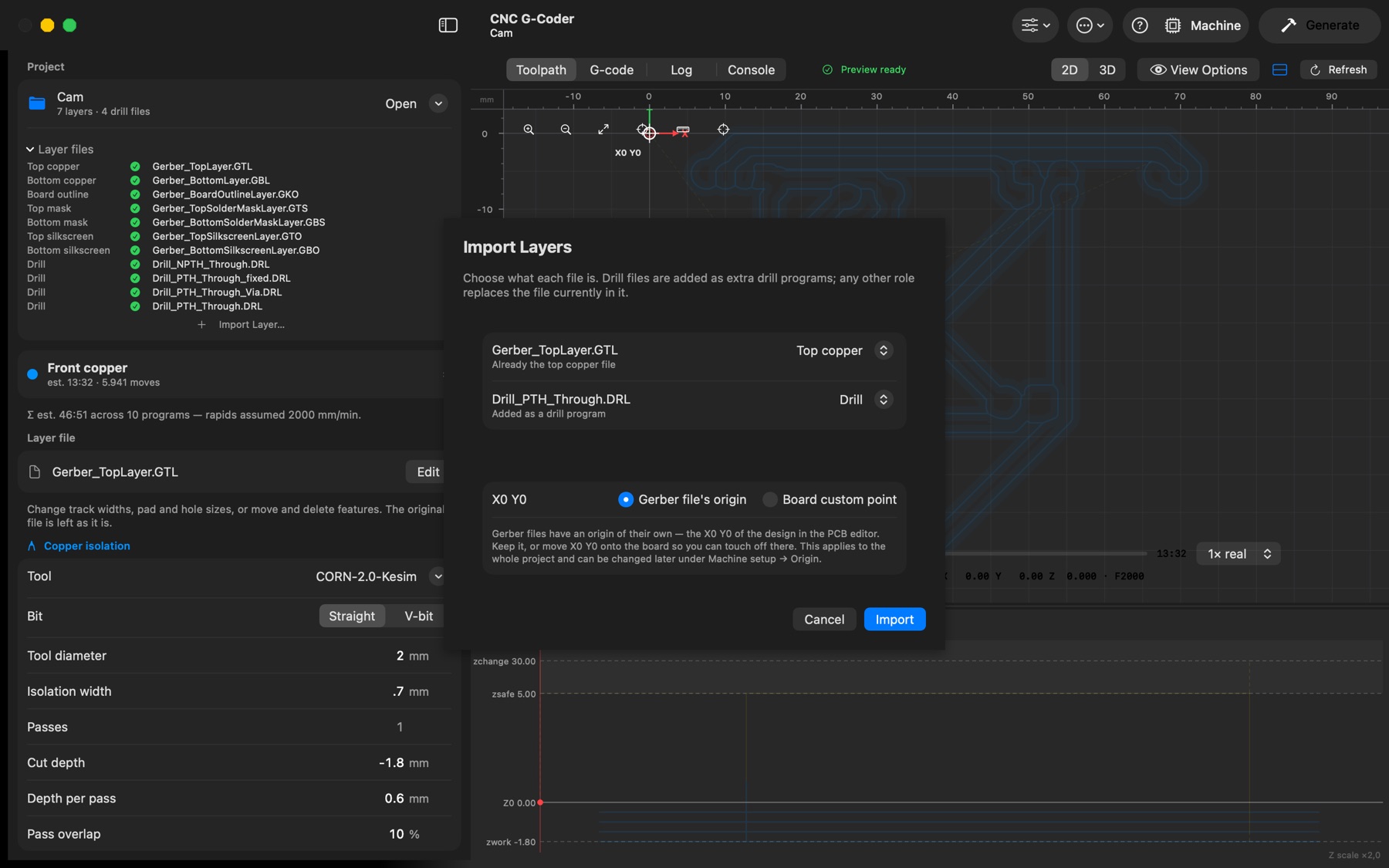
File → Import Layer… (⌘I), or Import Layer… under Layer files in the sidebar, adds Gerber or Excellon files from anywhere. Each file's role is guessed from its name (and drill files from their M48 header, whatever they are called) and can be changed in the import sheet before importing: a drill file is added as another drill program; any other role replaces the file in that slot. Right-click a layer file in the sidebar to Replace…, Remove or Show in Finder.