06 · Projects & layers
Custom layers — drawing your own shapes
Draw lines, shapes and text and machine them like any other layer.
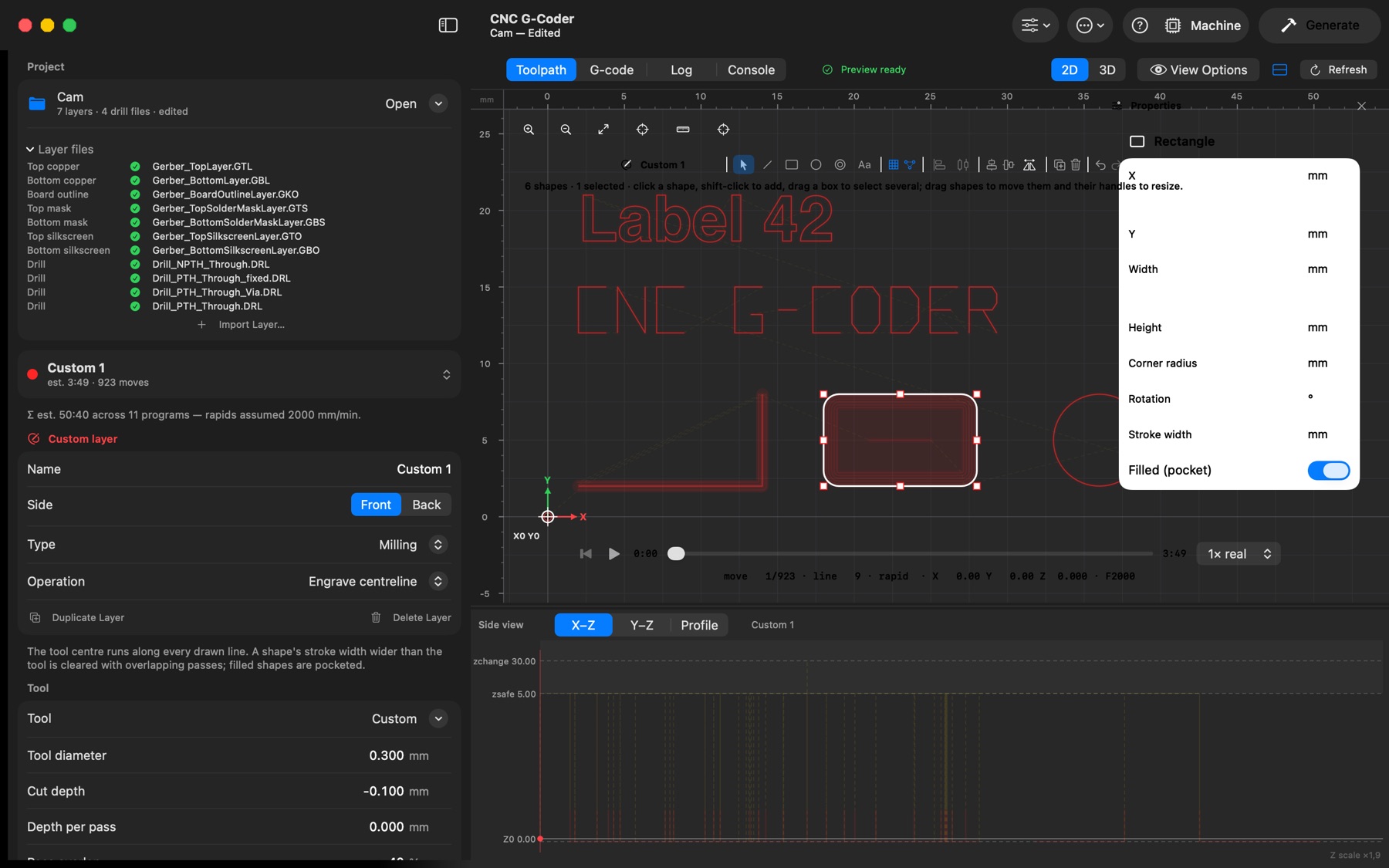
File → New Custom Layer (⇧⌘N, also in the sidebar's layer menu) adds a layer you draw on: lines and polygons, rectangles (with corner radius and rotation), circles, and text — in the built-in single-stroke engraving font or any installed font, engraved along its outlines. Every non-empty layer becomes one program, written by Generate and the CNC export like any other, and shown in the preview as it regenerates after each edit.
Drawing. With the layer selected, a bar appears over the preview with the tools — Select (V), Line (L), Rectangle (R), Circle (C), Text (T). Click or drag to draw; double-click or Return finishes a line, clicking its first point closes it into a polygon; Shift constrains to 45° and makes squares. Points snap to the grid (Snap to Grid), to guides, and to other shapes' corners, vertices, centres and quadrants (Snap to Objects); a green ring shows the snap. Right- or middle-drag pans (Option-drag too), scroll zooms as usual. The other programs show behind the drawing only with All Layers Overlay on (View Options).
Editing. Click to select, shift-click to add, drag a box (rightwards: enclosed shapes, leftwards: touched shapes). Drag shapes to move them — they snap to each other — or drag the handles to resize rectangles and circles and to move a line's vertices. Arrow keys nudge by 0.1 mm (Shift: 1 mm), ⌘D duplicates, Delete deletes, ⌘Z undoes everything. The sidebar lists the shapes; selecting one opens a floating Properties panel at the right of the drawing with its numbers — position, size, corner radius, rotation, text, font, stroke width — for exact values; with several selected, Align (edges and centres) and Distribute (equal gaps) line them up.
Machining. Each layer has one tool (from the library or typed in), a depth, depth per pass, feeds and spindle, and an operation. Engrave runs the tool centre along the drawn line; Cut outside / Cut inside offset closed shapes by half the tool so what you drew is the size that comes out (outside for a part you keep, inside for a hole). A shape's stroke width wider than the tool is cleared with overlapping passes; Filled pockets a closed shape inside-out. Shapes are drawn in design coordinates on the board, so they keep their place whatever origin you choose, and a Back-side layer is mirrored like back copper. Custom layers are saved in the project.