10 · Output
Generating programs
The Generate dialog, the destination folder and the files it writes.
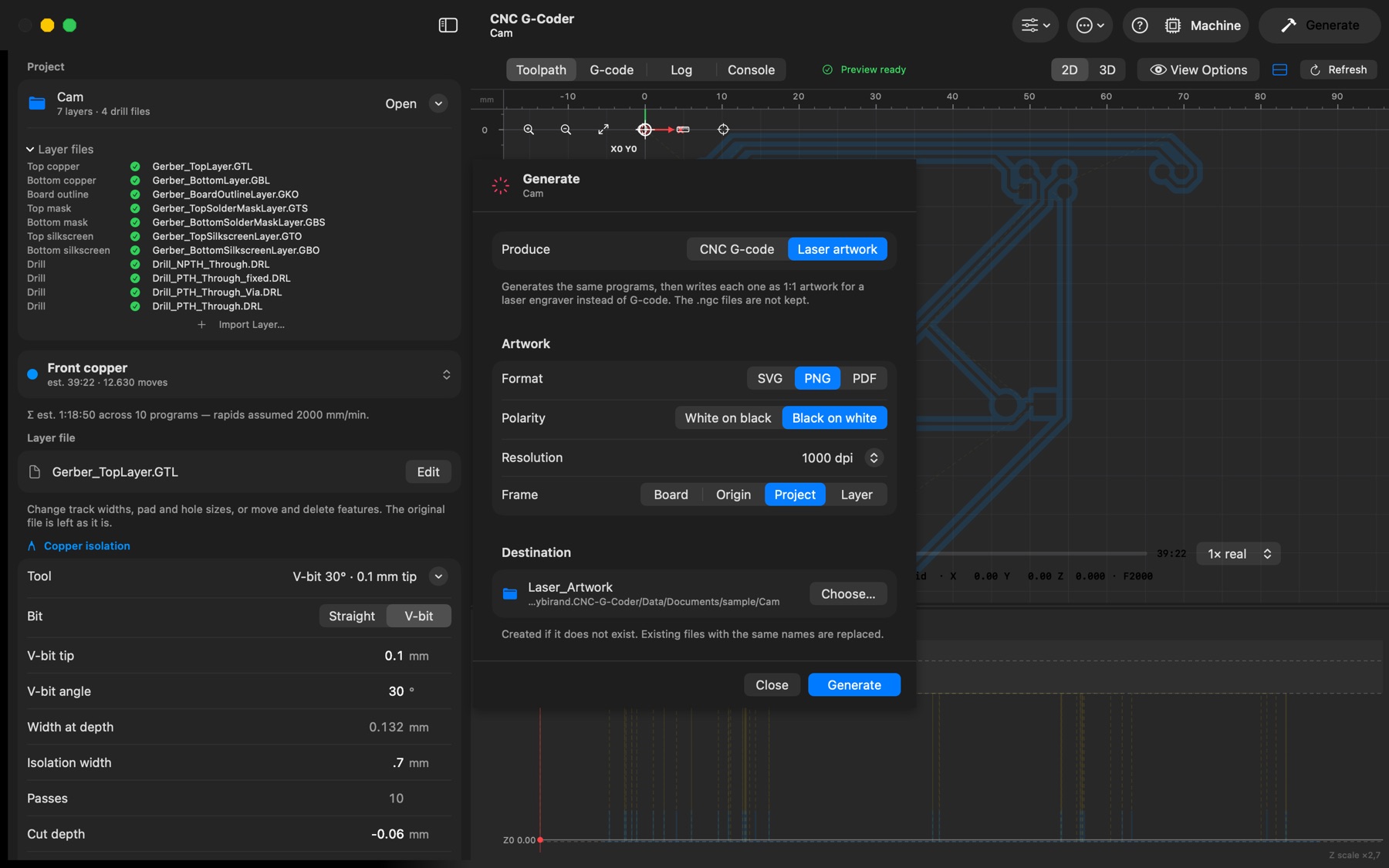
Generate (toolbar, or the Generate button in the sidebar) opens the Generate dialog.
- Produce — CNC G-code generates the toolpaths with the current parameters and writes the
.ngcprograms, exactly the files the preview is showing. Laser artwork generates the same programs, then writes each one as 1:1 artwork for a laser engraver instead of G-code (the.ngcfiles are not kept); its Format, Polarity, Resolution and Frame options are the ones described under Laser engraving & artwork export. - Destination — the folder the files go to; Choose… opens the folder picker (its New Folder button creates a fresh one). The folder is created if it does not exist, and existing files with the same names are replaced. The suggestion is
Generated_GCodenext to the project; the choice is remembered until you switch projects. - While it runs the dialog lists the stages (front copper, back copper, outline, one per drill file, masks, silkscreen, custom layers) with their state; Cancel Run stops after the stage that is currently running. When it is done, Open Folder reveals the output in Finder, and the Log tab has the full output with per-stage timings.
Output files. front-copper.ngc, back-copper.ngc, outline.ngc, one <drill file>.ngc per drill file (plus <drill file>-milled.ngc when Mill large holes is on), top-mask-etch.ngc / bottom-mask-etch.ngc, top-silkscreen.ngc / bottom-silkscreen.ngc, and one program per custom layer. Back-side programs are mirrored and ready to run after the flip; all programs share the origin chosen in Machine setup. Backlash compensation (Machine setup) is applied to these files as they are written.
The More menu (… in the toolbar): Open Output Folder reveals the last destination; Copy pcb2gcode Command puts the exact command line the app ran on the clipboard, for running pcb2gcode yourself or for a bug report; New Custom Layer and Generate Test Board… are the same as in the File menu.