07 · Projects & layers
Editing imported layers
Resize tracks, pads and holes in place without touching the originals.
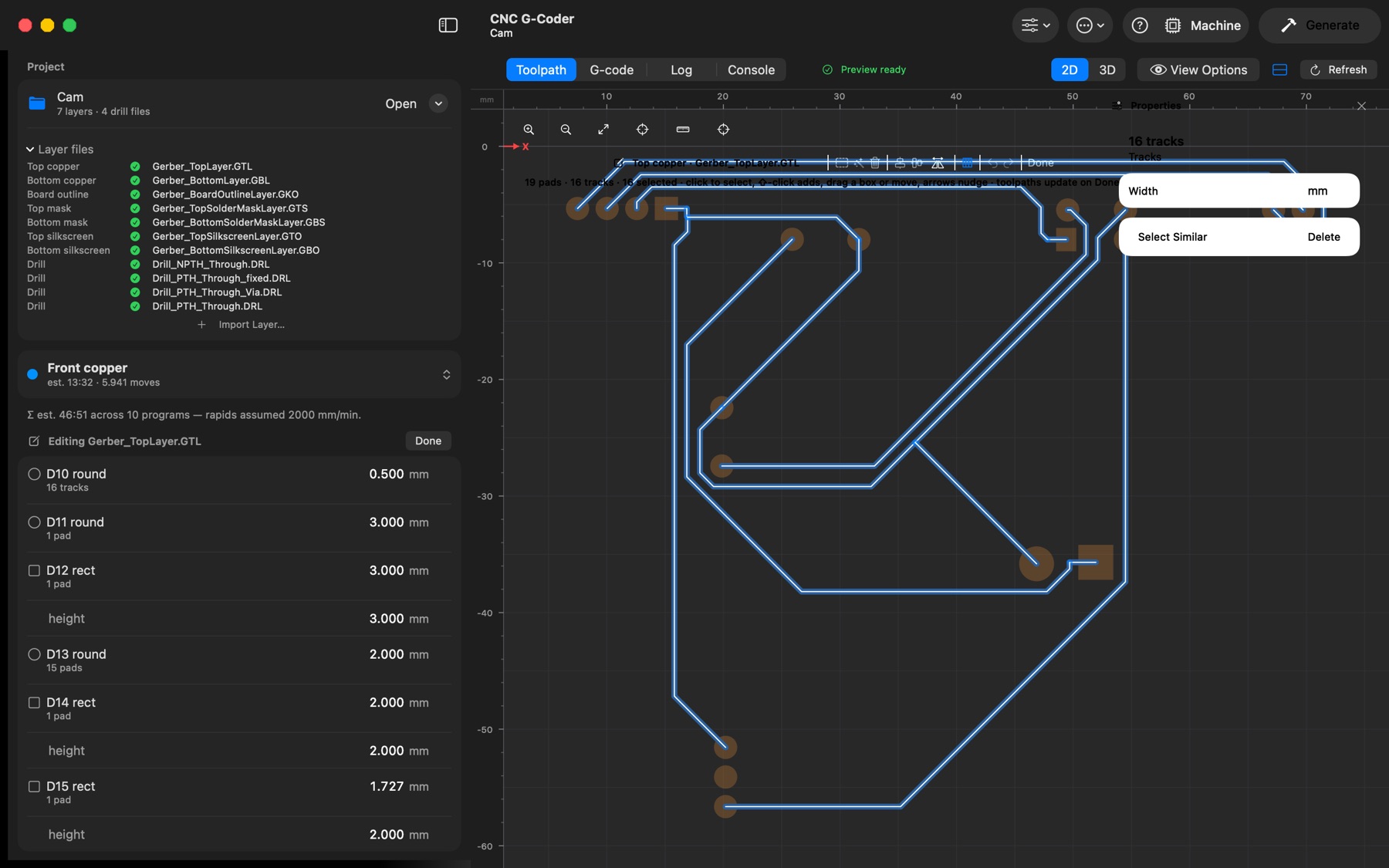
Any imported Gerber or drill file can be edited in place: select a program made from one and click Edit at the top of its settings, or right-click the file under Layer files → Edit…. The file's artwork (pads, tracks, filled areas or holes) is drawn over its program in the 2D view.
- Select: click, ⇧-click to add, drag a box (left-to-right encloses, right-to-left touches). ⌘A selects all; Select Similar (the wand) adds every track of the same width, pad of the same aperture or hole of the same size.
- Change sizes of the selection in the Properties panel: track width, pad diameter or width × height, hole diameter. Only the selected objects change.
- Change a size everywhere: while editing, the sidebar lists the file's apertures (Gerber) or drill tools (Excellon). Editing a row resizes everything that uses it, e.g. all 0.25 mm tracks at once. The target icon selects them.
- Move by dragging or with the arrow keys (0.1 mm, ⇧ 1 mm); Delete with ⌫. Values commit on Return.
Every edit writes an edited copy of the file; the original file is never modified. While editing, the sidebar shows only the file's sizes and pcb2gcode does not run — the toolpaths drawn under the artwork are the ones from before editing. Press Done (or Esc with nothing selected) and the preview regenerates once from the edited file. Edits are on the normal undo history (⌘Z), edited files are marked with an orange pencil, and saving the project packs the edited file. Custom-shaped (macro) pads and filled areas can be moved or deleted but not resized.