Tools
Tone
In the app, every tool's ⋯ menu ▸ Help opens its section here; hover any slider for a short explanation.
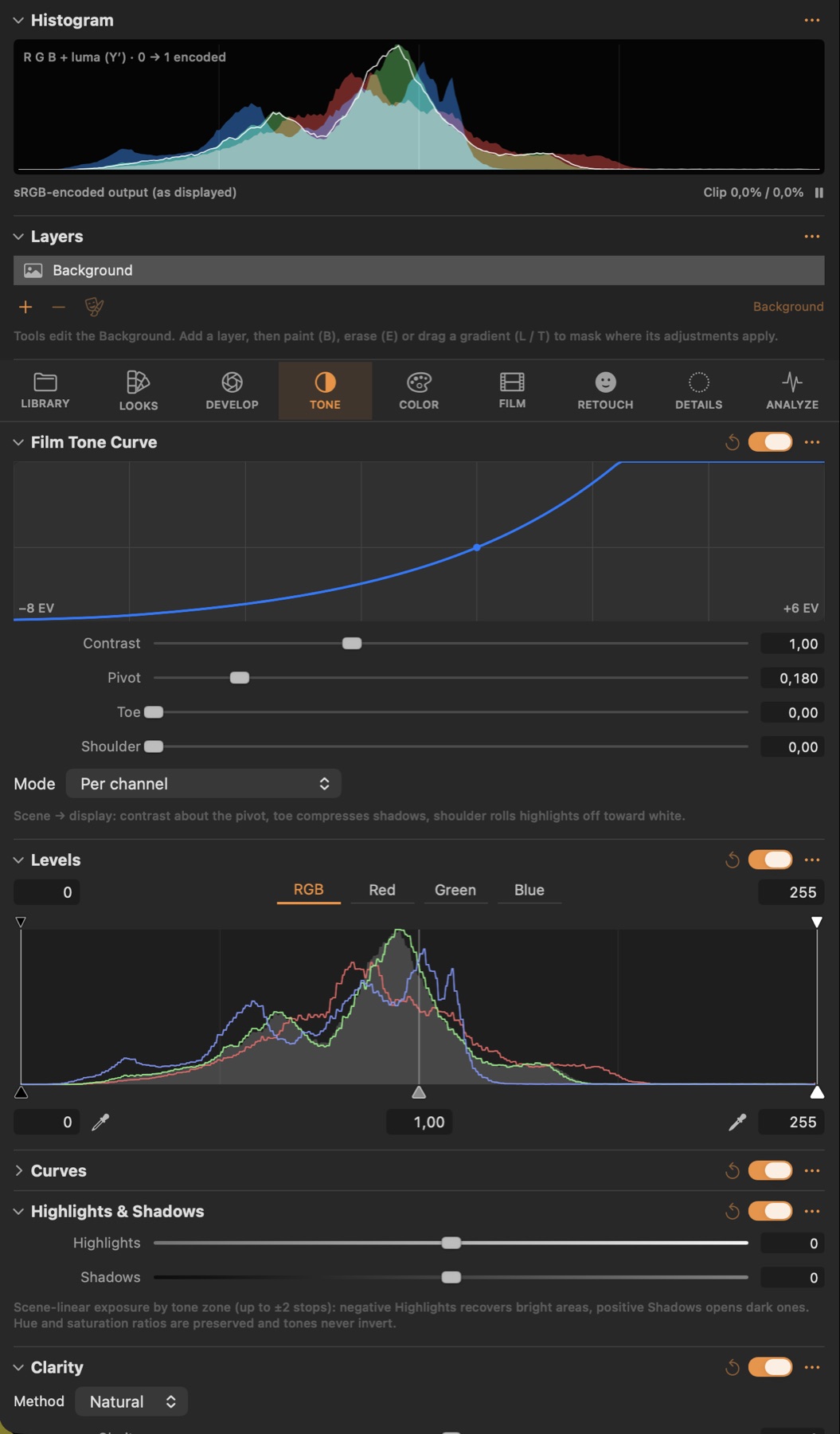
Highlights & Shadows
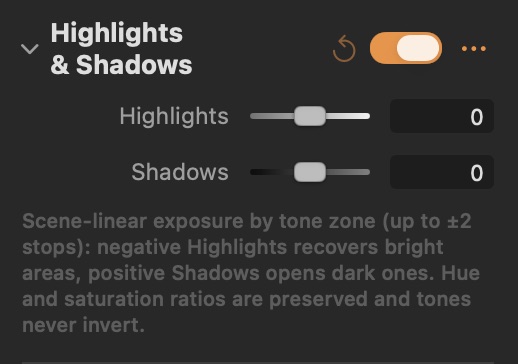
#Recover highlights or open shadows by tone zone, keeping colours natural.
Parameters
| Parameter | What it does |
|---|---|
| Highlights | Negative recovers bright areas (up to −2 stops), positive brightens them. |
| Shadows | Positive opens dark areas (up to +2 stops), negative deepens them. |
Clarity
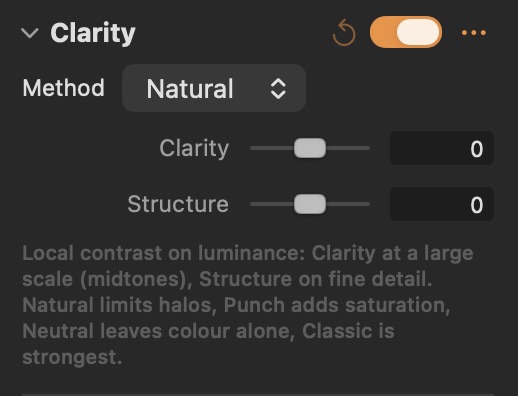
#Local contrast: Clarity for large-scale midtone contrast, Structure for fine detail.
Parameters
| Parameter | What it does |
|---|---|
| Clarity | Large-scale local contrast in the midtones: adds punch or softens. |
| Structure | Fine-detail local contrast: crisper texture without large halos. |
Good to know
- Natural limits halos, Punch adds saturation, Neutral leaves colour alone, Classic is the strongest.
Film Tone Curve
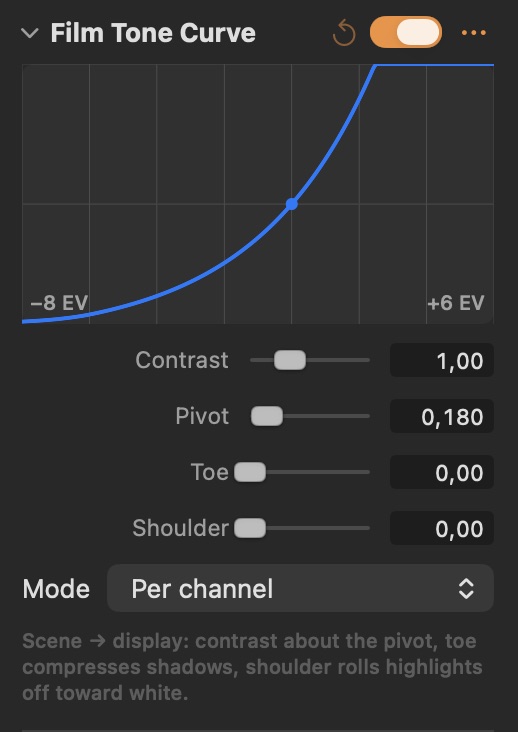
#The film-like tone curve from scene light to display: contrast around a pivot, toe and shoulder.
Parameters
| Parameter | What it does |
|---|---|
| Contrast | Slope of the tone curve around the pivot: more contrast spreads midtones apart. |
| Pivot | The scene level that stays fixed when contrast changes (0.18 = middle grey). |
| Toe | Softens and lifts the deepest shadows, like the toe of a film curve. |
| Shoulder | Rolls highlights off smoothly instead of clipping them, like the shoulder of a film curve. |
Levels
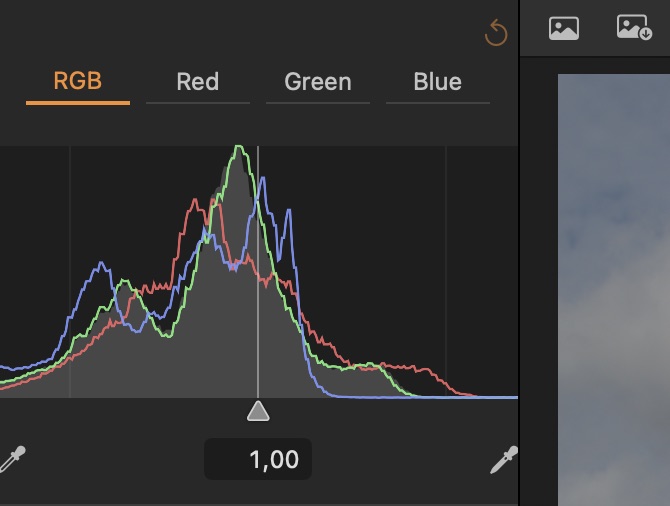
#Black point, white point and midtone for RGB or each channel, with output limits and eyedroppers.
Good to know
- RGB, Red, Green and Blue tabs; top handles set output, bottom handles input black, midtone and white.
- Eyedroppers: in the RGB tab they set each channel's point, removing a cast.
Curves
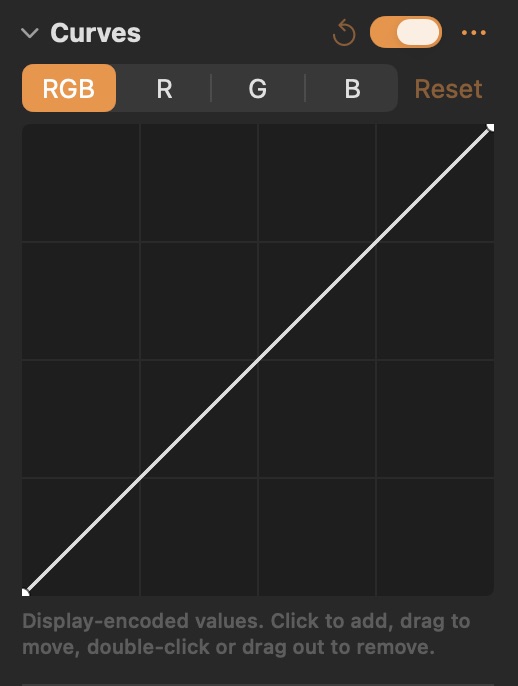
#Point curves for RGB and each channel on the display-encoded image.
Good to know
- Click to add a point, drag to move, double-click or drag out to remove.