Tools
Details
In the app, every tool's ⋯ menu ▸ Help opens its section here; hover any slider for a short explanation.
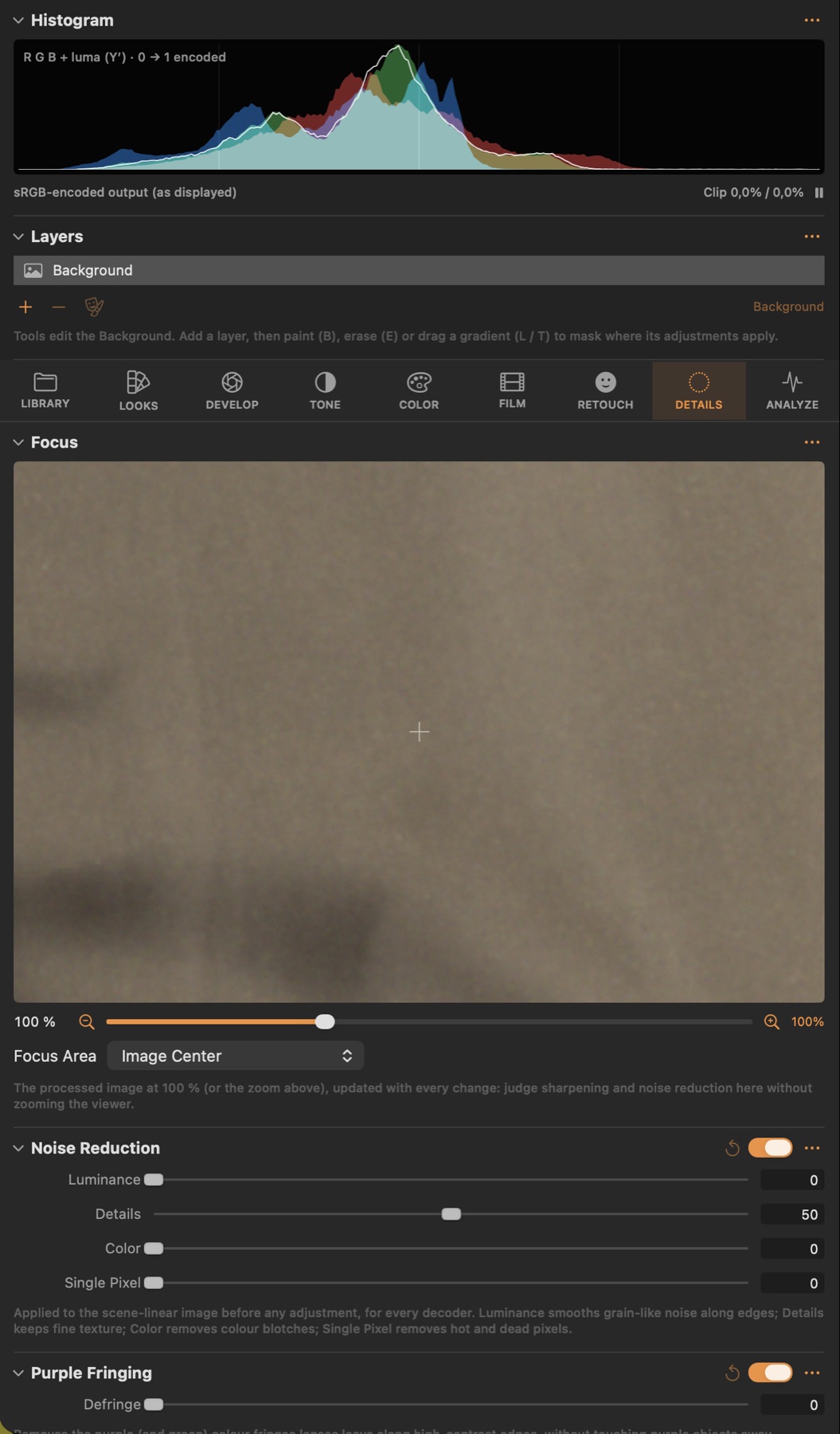
Focus
#A 100 % crop of the processed image that updates with every change: check sharpness, noise and detail without zooming the viewer.
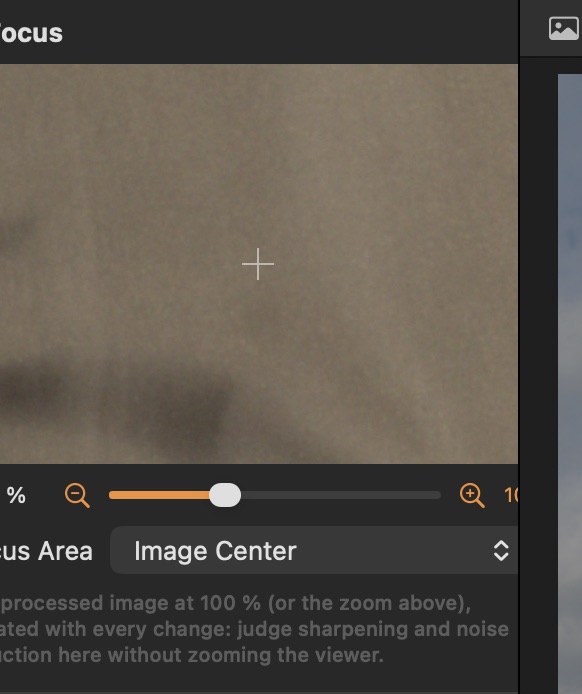
Good to know
- Focus Area: Image Center, Center to Eye (uses the detected faces) or Custom — drag inside the preview to move it.
- The crop is taken from the processed image, so it shows sharpening, noise reduction and grain exactly as exported.
Sharpening
#Sharpens fine luminance detail; the threshold protects smooth areas and noise.
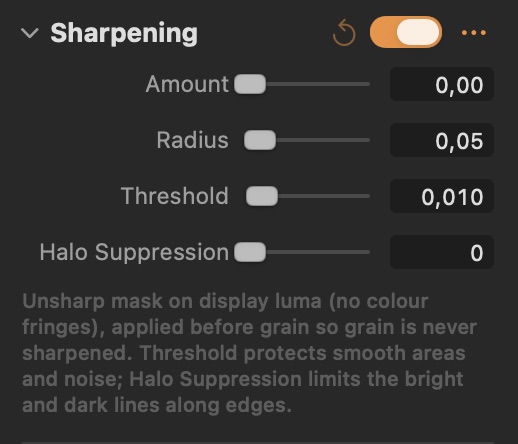
Parameters
| Parameter | What it does |
|---|---|
| Amount | Strength of the sharpening. |
| Radius | Size of the detail that is sharpened (percentage of the short side). |
| Threshold | Detail below this is left alone (protects skies, skin and noise). |
| Halo Suppression | Limits the bright and dark lines sharpening adds along edges. |
Noise Reduction
#Luminance and colour noise reduction and hot-pixel removal on the scene-linear image, for every decoder.
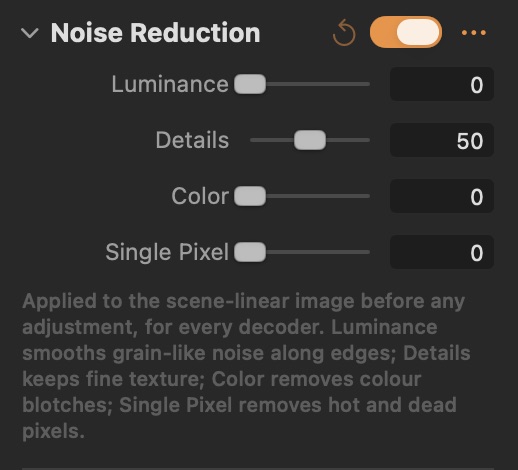
Parameters
| Parameter | What it does |
|---|---|
| Luminance | Smooths brightness noise while keeping edges. |
| Details | How much fine texture is kept while smoothing (higher = more detail, more noise). |
| Color | Removes colour blotches (chroma noise). |
| Single Pixel | Removes hot and dead pixels that stand out from their neighbours. |
Good to know
- Runs before every other adjustment on the scene-linear image, so it works the same with the direct DNG decoder and Apple's RAW engine.
- Start with Luminance and lower Details until the noise is gone; raise Details to bring texture back. Color fixes blotchy shadows; Single Pixel only when hot pixels are visible.
Purple Fringing
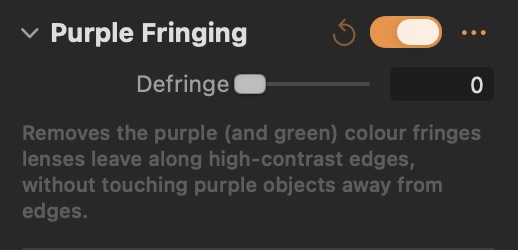
#Removes purple and green colour fringes along high-contrast edges (chromatic aberration).
Parameters
| Parameter | What it does |
|---|---|
| Defringe | Strength of the purple / green fringe removal along edges. |
Good to know
- Only colour that sits on a strong luminance edge is affected; purple objects away from edges keep their colour.
Moiré
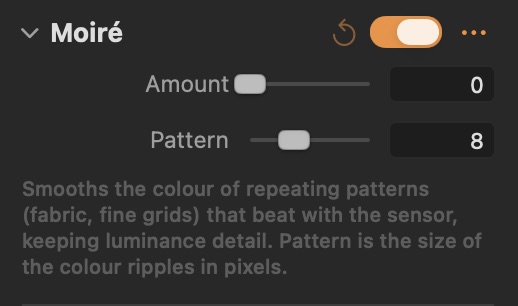
#Smooths the colour ripples that fine repeating patterns produce, keeping detail.
Parameters
| Parameter | What it does |
|---|---|
| Amount | Strength of the colour smoothing in patterned areas. |
| Pattern | Size of the colour ripples in pixels (larger smooths wider patterns). |
Good to know
- Pattern is the size of the colour ripples in pixels: match it to the moiré you see, then raise Amount.
Dust Removal
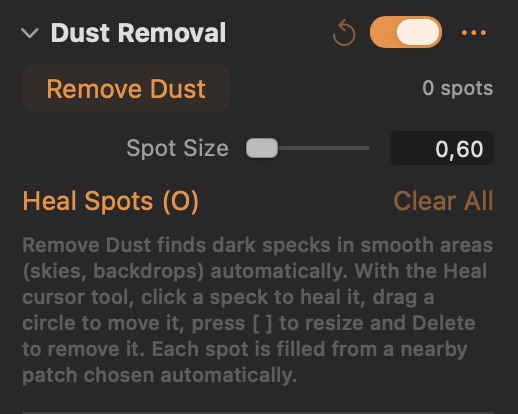
#Heals sensor dust and specks: automatically in smooth areas, or spot by spot with the Heal cursor tool.
Parameters
| Parameter | What it does |
|---|---|
| Spot Size | Diameter of new spots, as a percentage of the short side. |
Good to know
- Remove Dust scans smooth areas (skies, backdrops) for dark specks and adds a spot for each.
- Heal Spots (O) turns on the Heal cursor tool: click a speck to add a spot, drag a circle to move it, [ ] resizes, Delete removes the selected spot.
- Spots are stored on the uncropped image, so they stay in place when you crop or rotate, and they export with the image.