Tools
Library
In the app, every tool's ⋯ menu ▸ Help opens its section here; hover any slider for a short explanation.
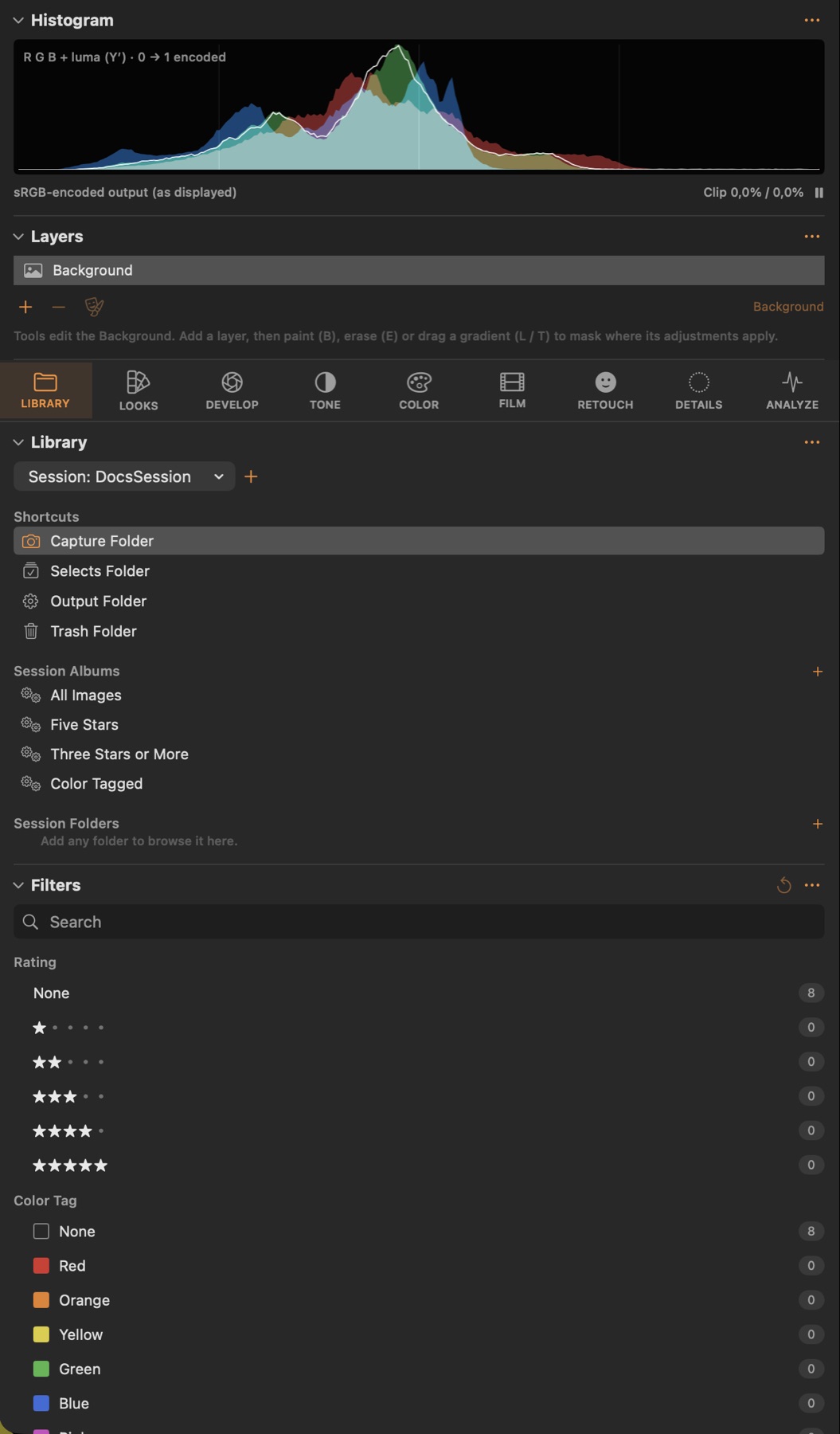
Library
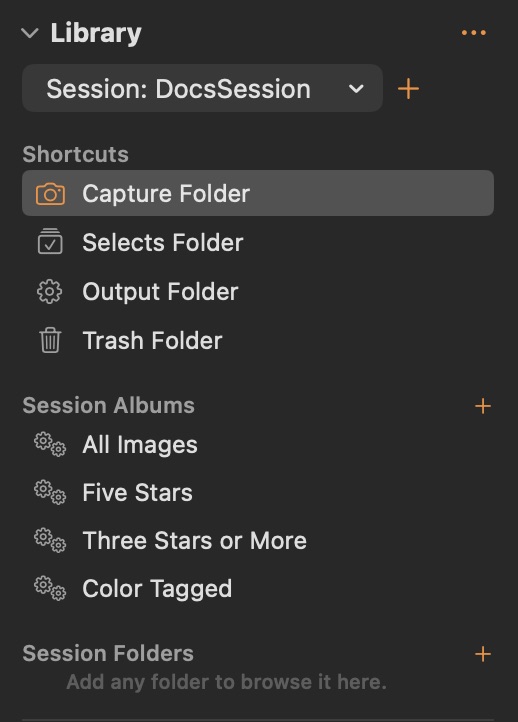
#Sessions, their Capture / Selects / Output / Trash folders, albums and added folders.
Good to know
- Shortcuts: Capture, Selects, Output and Trash folders.
- Capture Folders: the subfolders of Capture made by File ▸ New Project… (or + here). A click browses a folder; right-click ▸ Set as Active Capture Folder makes it the active one (camera badge) — every imported card file and tethered capture goes there, numbered from the folder's last file; {folder} in a naming pattern is its name. The active folder is remembered with the session, so you can browse other folders while shooting into it.
- Session Albums: smart albums and manual albums. + opens the smart album editor (Capture One style): match all / any of a list of rules, each a field (Any, Display Name, File Size, Adjusted, Color Tag, Date / Month / Year, Format, Width, Height, Keywords, Orientation, Rating, Title, Caption, Camera Make / Model / Lens, ISO, Aperture, Shutter Speed, Focal Length, Faces, Eyes Closed, Soft Focus, Burst), an operator (is, contains, begins with, is greater than, is before, is in the last … days, …) and a value; rows can be switched off with their checkbox, Presets fill in common rules. Right-click an album ▸ Edit Smart Album… to change it later.
- Session Folders: any folder added to the session (+ or drag). Adding one opens a progress dialog: images found, capture data read so far, the file being read, elapsed time and Cancel (which removes the folder again). The folder stays linked; nothing is copied.
- Batch Rename (Image ▸ Batch Rename…, ⌃⌘R, or right-click): rename the selected files on disk with a naming format built from tokens ({name}, {counter}, {session}, {date}, {capture_date}, {rating}, {tag}), a start counter and a digit count; Find and Replace; or From List, where you paste or load a text file of names (a client's shot list) that the selected files take in browser order. Adjustments, ratings, variants and the key image follow the files; names that already exist are skipped.
Filters
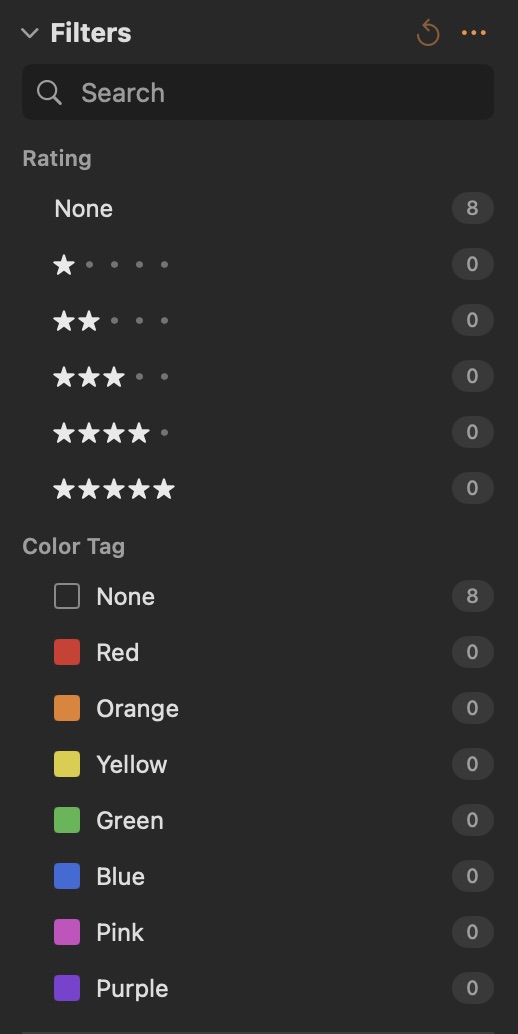
#Show only images with chosen ratings, colour tags or names.
Good to know
- Click a rating or colour row to show only those images; click again to remove the filter. Counts update live.
- Content rules in smart albums (faces, eyes closed, sharp / soft, bursts) use Library ▸ Analyze Images, which runs face detection and a sharpness measure over every image of the current collection that has not been analysed yet (right-click images to analyse a selection again) and flags the results in the browser. Faces hidden behind sunglasses are not judged for closed eyes.
Metadata
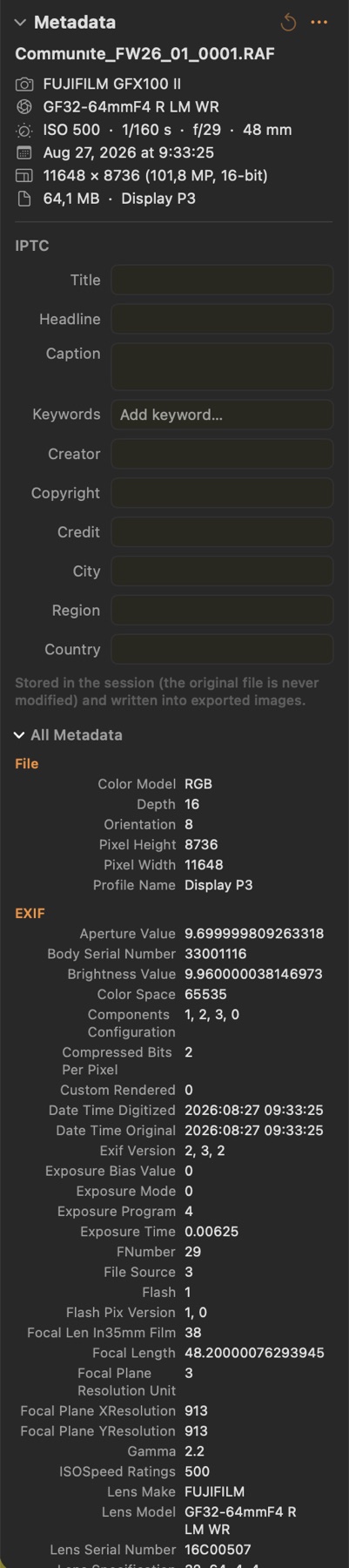
#Camera data at a glance and editable IPTC fields (title, caption, keywords, copyright…), written into exports.
Good to know
- Edit fields for several selected images at once; Multiple values shows where they differ.
- Keywords: type and press Return; commas add several.
Versions
#Named versions of the current image's adjustments: save a state, restore it later, keep client and retouched variants side by side.
Good to know
- Save Version… keeps every adjustment, layer and crop as a named snapshot in the session; Restore brings one back (undoable). Variants (Image ▸ New Variant, ⌘J / ⇧⌘J) are separate editable copies instead.
Actions
#Recorded sequences of commands and looks that run on the selection (Image ▸ Actions, ⌃⌥1…9).
Good to know
- Record New Action…, then rate, tag, apply looks, run adjustment commands or move images once; Stop saves the steps. Run an action on any selection from the tool, from Image ▸ Actions, or with ⌃⌥1…9.