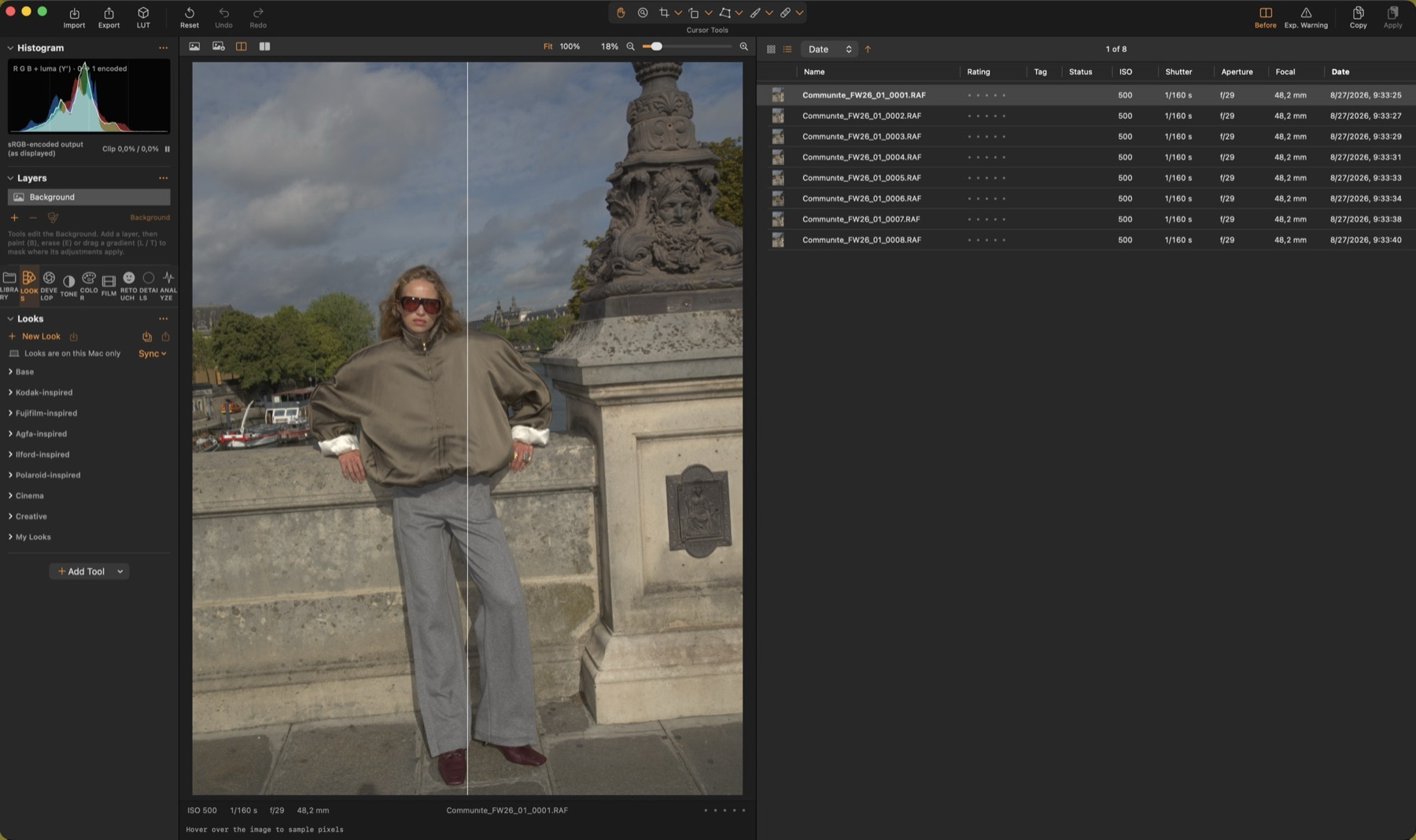
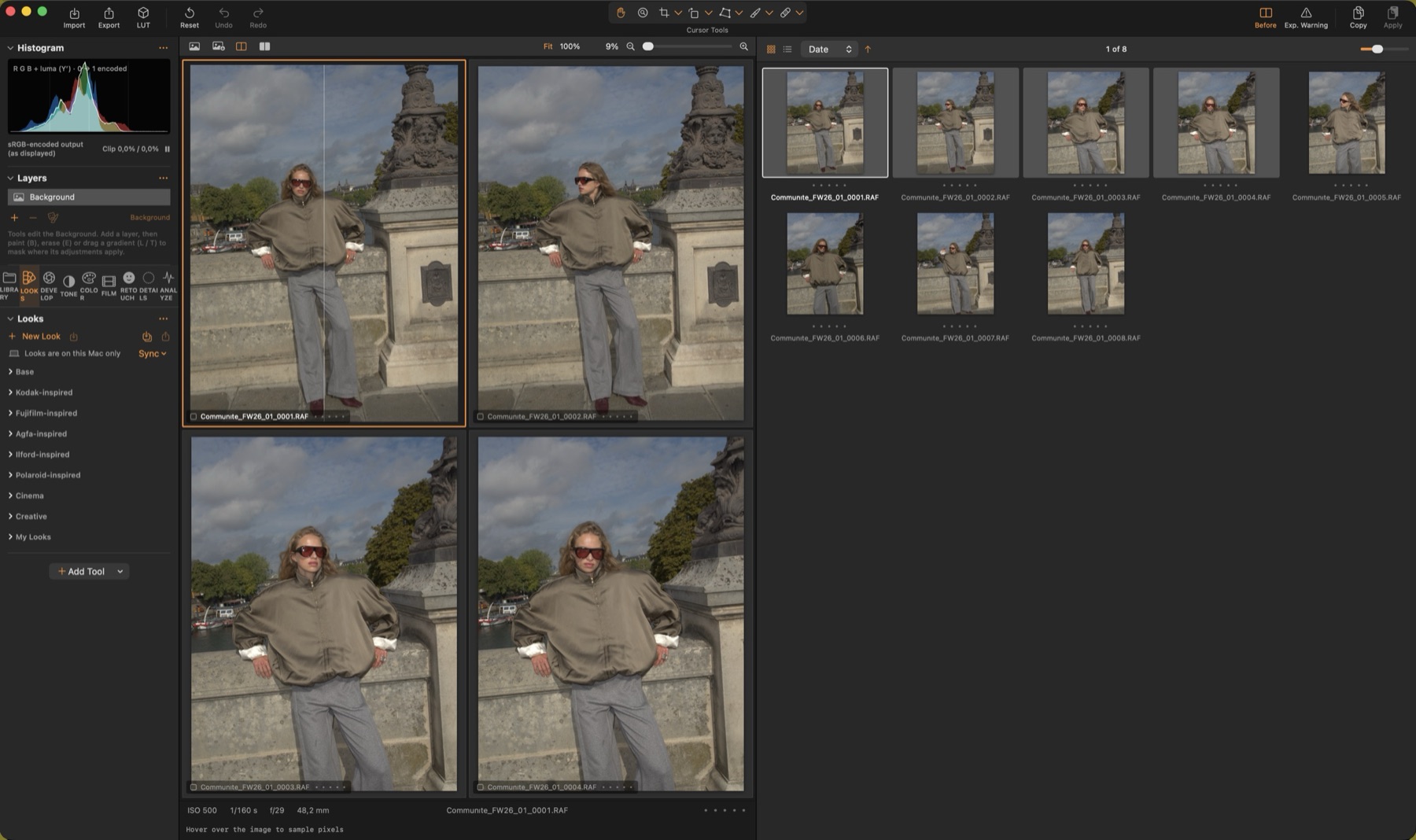
The Workspace
Tools on the left, the viewer in the middle, the browser on the right — each panel can be resized by dragging its edge, moved, floated in its own window or hidden, and arrangements can be saved as workspaces.
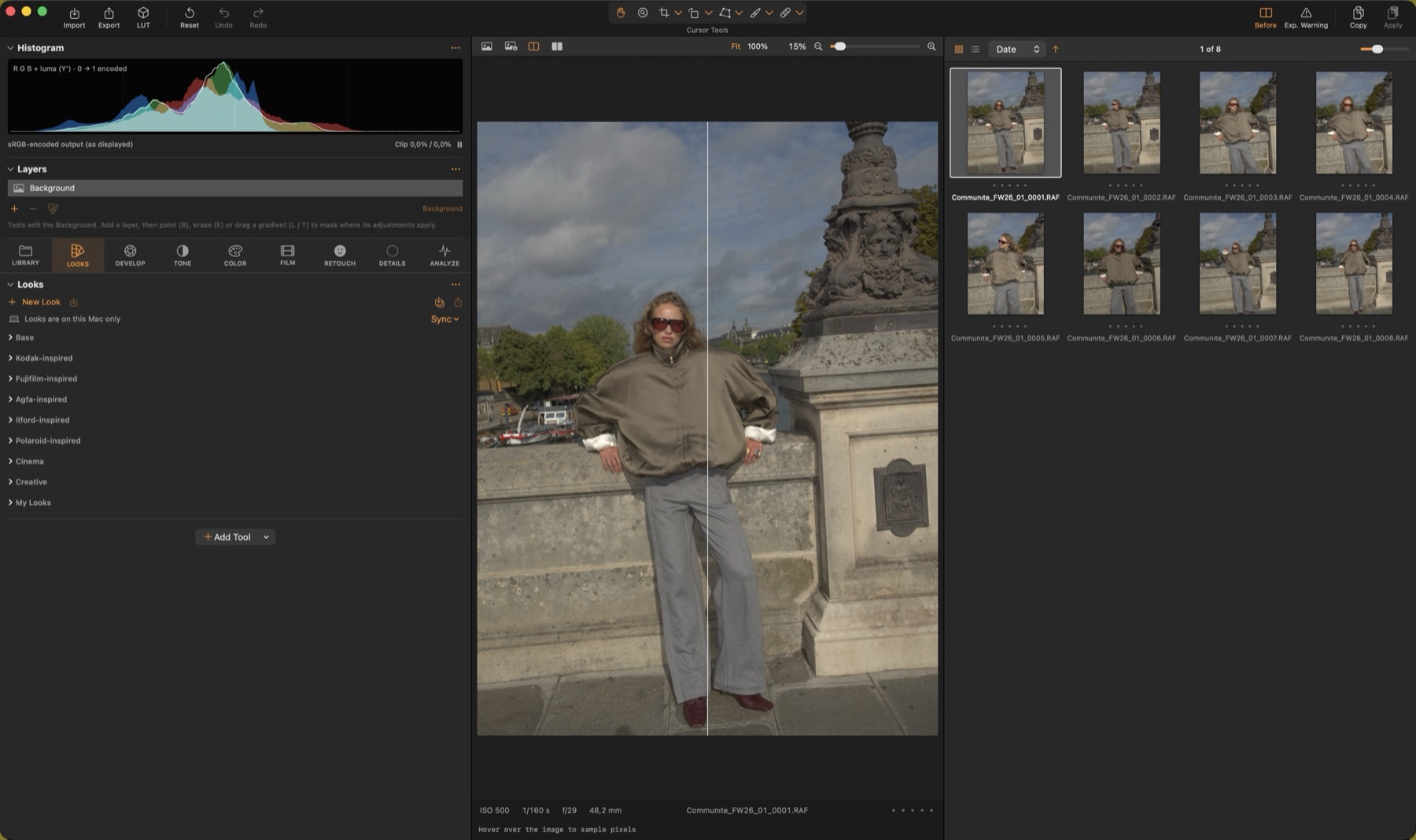
Panels and workspaces
View ▸ Panels lists Tools, Viewer, Browser and Layer Tools; each can be Docked (a column of the main window), Floating (its own window, handy on a second display) or Hidden, and docked columns can be moved left or right. ⌘T and ⌘B toggle Tools and Browser; closing a floating window hides that panel.
View ▸ Workspace switches between the built-in layouts — Default, Simplified (no browser), Browsing (browser on the left, no tools), Retouching (Layer Tools docked), Tethering (browser left, tools right) and Dual Monitor (tools, browser and Layer Tools floating) — and your own: Save Workspace… stores the current arrangement, optionally with the tool tabs; the matching workspace is ticked and can be deleted.
Top bar
Left: Import, Export, LUT, Reset, Undo and Redo. Centre: the cursor tools (pan, loupe, crop, straighten, keystone). Right: Before / After, Exposure Warning and Copy / Apply adjustments.
Tool panel
Tools are grouped in tabs: Library, Looks, Develop, Tone, Color, Film and Analyze. The Histogram is pinned above the tabs. Right-click empty space to add tools, drag a tool header to reorder, or use its ⋯ menu to move it to another tab, pin it, or open its help.
Each tool header has a reset button and an on/off switch, so you can compare with and without that tool at any time.
Viewer
The bar above the image switches between Processed, Source, Split and Side by Side, and sets the zoom (Fit, 100 %, slider). Scroll to zoom, drag to pan, double-click to toggle Fit / 100 %.
The strip below shows ISO, shutter, aperture, focal length, file name and rating, and the pixel readout under the pointer.
Press F for the full-screen viewer; ← → and 0–5 still work, F or Esc returns.
Browser
Grid or list view, sort by date, name, rating, ISO, shutter, aperture or focal length. In list mode click a column header to sort.
Selecting several images shows them all in the viewer (multi-view); the image being edited is live, the others are previews. ⇧↩ sets the key image.