Looks
Built-in film looks, your own, and the same list on every device.
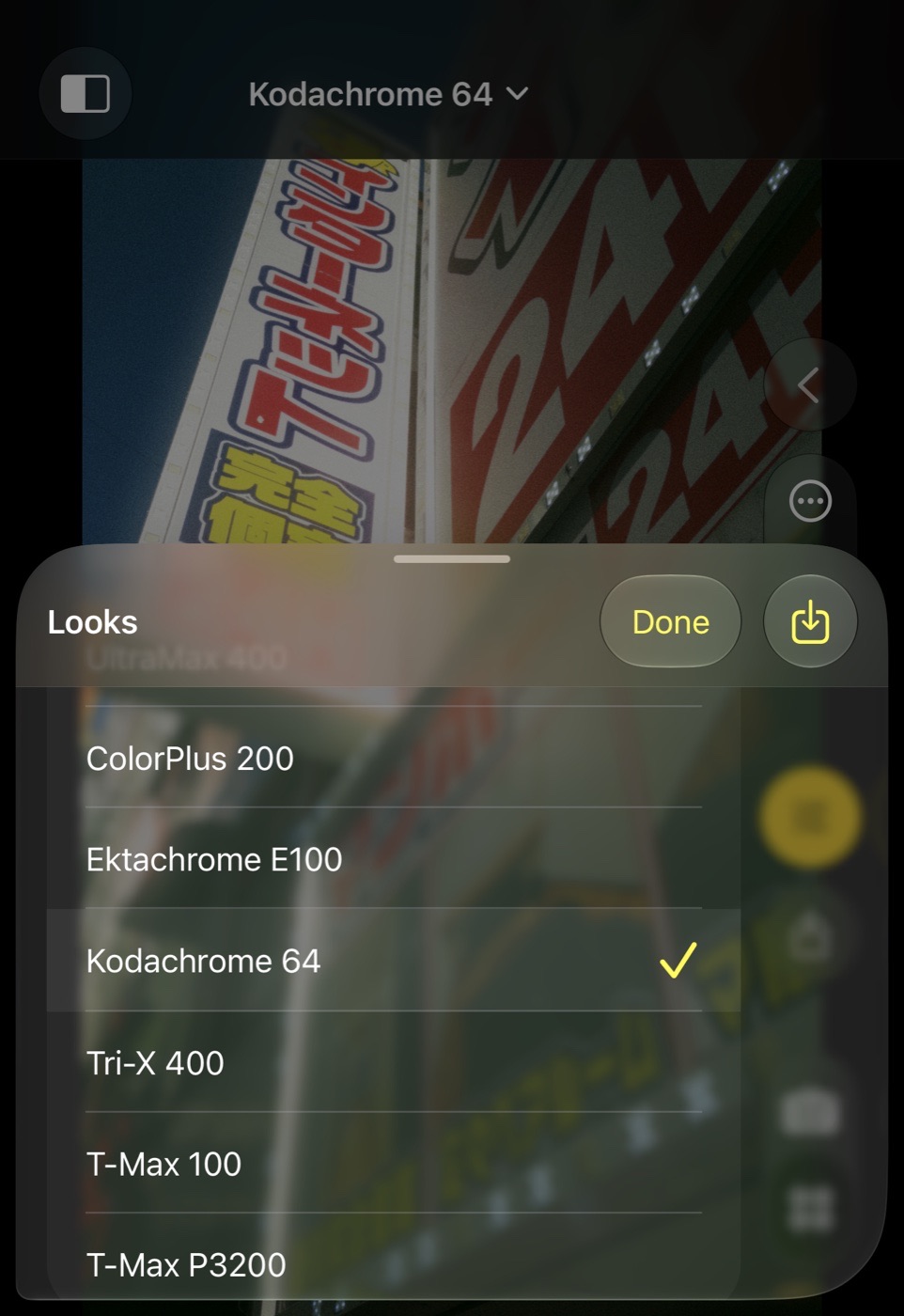
Choosing a look
Looks are chosen in the Gallery editor: open a shot, tap the look name at the top and pick one. The editor applies it to the shot's own frame and writes it back to the shot; the camera itself always shoots Native. Two groups sit above the families: Favourites, the looks you have starred (swipe a look to the right or hold it), and Most Used, the three you choose most often.
The sheet lists the looks by family: Base, Kodak-inspired, Fuji-inspired, Agfa, Ilford, Polaroid, Cinema, Creative, Signature and My Looks. It opens scrolled to the look in use. Tap a look to take it; drag the sheet up for the full list.
Native
Native is the neutral starting point: the camera's rendering with nothing added. Its photos use the camera's own processed frame, so they are identical to the live view, and the Gallery reopens them from that very frame.
Your own looks
In the Gallery, after adjusting a shot, tap the save icon in the adjustments panel header and give the look a name. It is kept under My Looks, selected, and available straight away. A look saves the chosen look plus your adjustments; a shot's own per-shot match is not part of it.
Swipe a look of your own to the left in the sheet, or hold it, to Rename or Delete it. Built-in looks cannot be changed.
Looks from the Mac
Color Science Lab exports .look files. Import one with Import at the top left of the Gallery's look sheet, or open the file from Files; it joins My Looks and renders with the same pipeline as on the Mac.
iCloud
Your own looks sync between every iPhone signed into the same iCloud account, through the app's private iCloud storage. Each look is sealed before it leaves the phone with a key that lives only in your iCloud Keychain, so the stored records cannot be read as recipes. Sync runs at launch, when the app comes to the foreground, and after you save, rename, import or delete a look. Built-in looks and the gallery do not sync. The switch is in Settings.