Gallery
Every shot taken with the camera, with its look, its adjustments and its framing, ready to revisit.
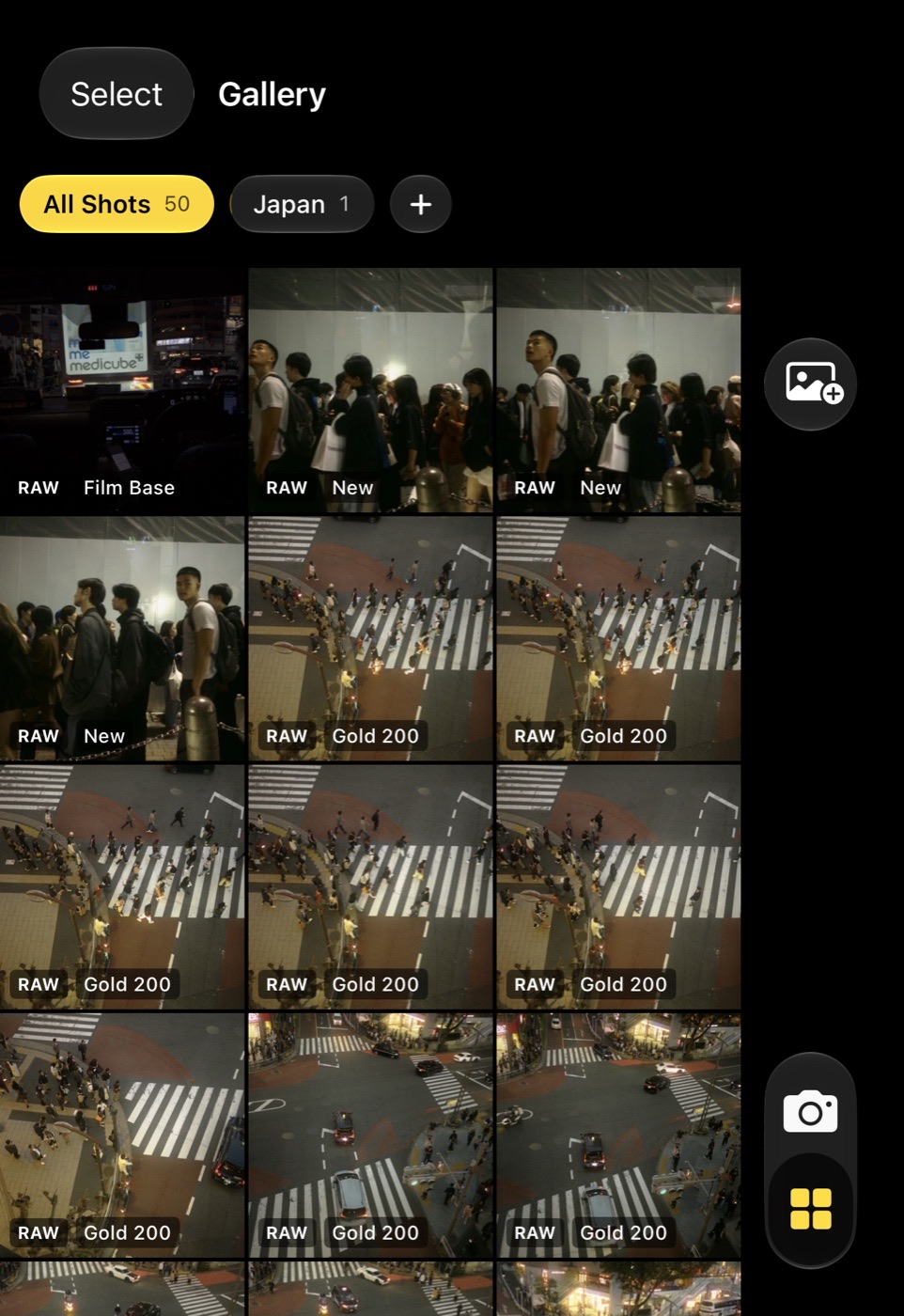
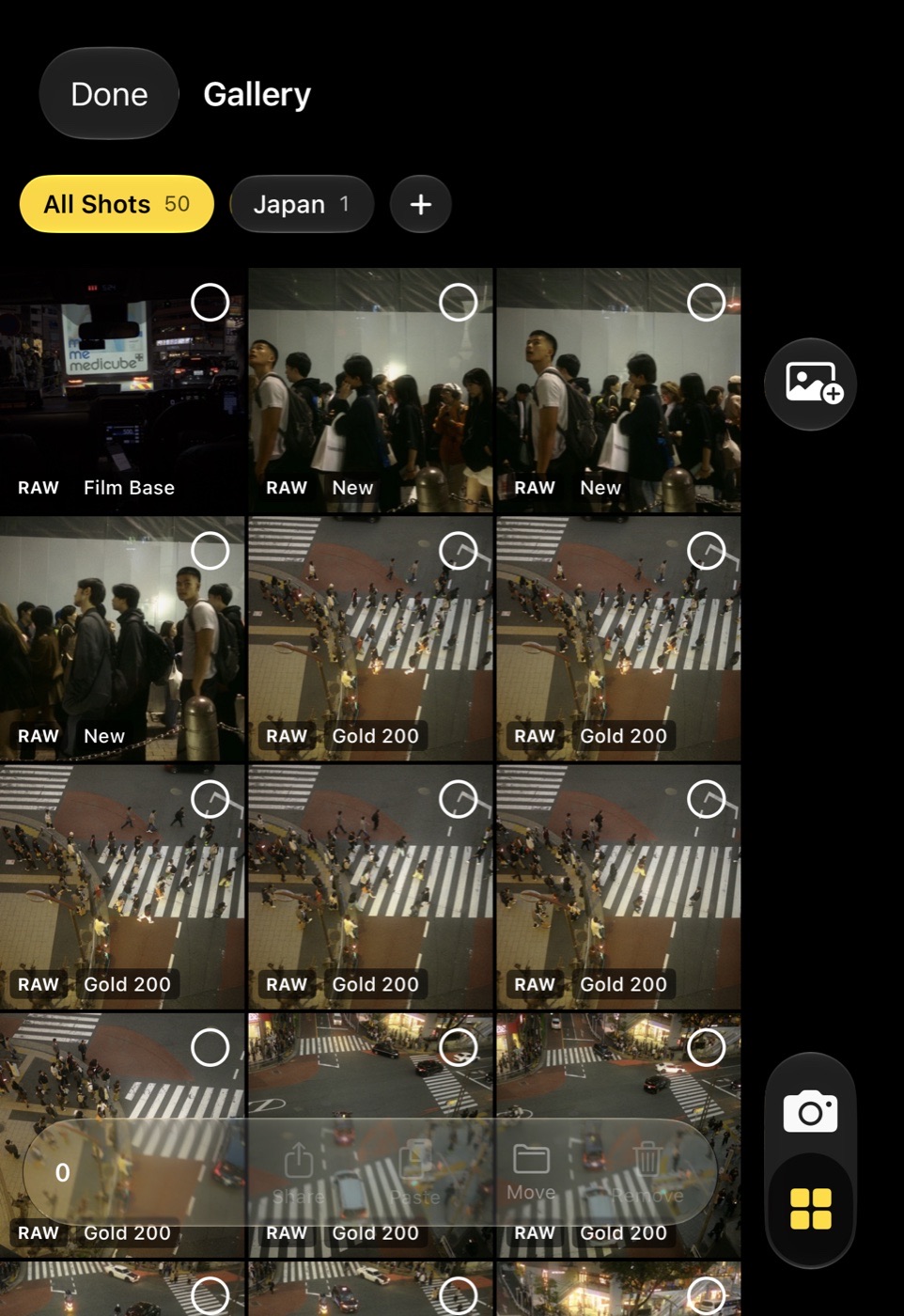
The grid
Shots appear newest first, each with its look's name and a RAW badge when a DNG is attached. The pictures themselves live in Photos; the app keeps only what Photos cannot hold: the look, the adjustments, the per-shot match, the framing and a thumbnail.
Tap a shot to open it. Swipe down in the editor to come back; the grid lands on the shot you were looking at.
Galleries
The chips above the grid are your galleries: All Shots, each gallery you make with its count, and a plus to make a new one. Tap a chip to see only that gallery. Hold a chip for Rename, Export All to Photos and Delete Gallery; deleting a gallery leaves its shots in All Shots. Hold All Shots for Export All and Rebuild Tiles. The heart chip next to All Shots is the Favourites filter: it shows only the shots you have starred, within whichever gallery is chosen. Star a shot from its tile menu, from the heart button or the ⋯ menu while viewing it, or several at once in select mode; starred tiles carry a small heart.
Hold a shot
Hold a tile for its menu: Copy Settings, Paste Settings, New Variant, Share, Move to Gallery (with New Gallery), and Remove from Gallery. Removing takes the shot out of the app; the picture stays in Photos.
Select several
Select at the top left turns on selection. Tap tiles to pick them, and the bar at the bottom offers Share, Paste settings, Move to a gallery, and Remove, which asks first. Share, here and in every shot menu, asks what to hand over: the rendered pictures, the RAW files only, or both; for clips the graded clip, the Log clip, or the clip with its Log original and LUT. Save Rendered to Photos at the foot of that menu puts the rendered pictures straight into Photos, one by one, with no sheet in between. Drag sideways across tiles to pick a run of them at once; dragging down still scrolls, and a drag held near the top or bottom edge scrolls the grid on under your finger. All in the bar selects every shot on screen, within the chosen gallery or the Favourites filter; tapped again it clears the selection.
Copy and paste settings
Copy takes a shot's look and adjustments. Paste puts them on one shot, or on every selected shot. The settings are written at once; the tiles and screen-size previews are re-rendered in the background, one after another, with a progress card and a Stop button. The same clipboard works inside the editor.
Variants
New Variant makes a second entry of the same picture with the shot's current look and adjustments. It sits next to the original with a small V and can be taken anywhere without touching the original. A variant exists only in the app until you export it.
Adding from Photos
The photo button at the top right adds any picture from your library to the gallery. A picture this camera saved comes back with its RAW and its match; any other picture opens as it is. Picking the same picture again opens its existing entry.